

Getting Started
Get up and running with JSON Toolkit in just a few steps.
Download the App
Section titled “Download the App”Download JSON Toolkit from the Mac App Store
Once installed, launch JSON Toolkit from your Applications folder or Launchpad.
Adding JSON
Section titled “Adding JSON”There are several ways to get JSON into the editor:
- Paste: Copy JSON from any source and paste it directly into the editor (
⌘V) - Open a file: Use File → Open (
⌘O) to open a.jsonor.jsoncfile - Type it: Start typing JSON directly in the editor
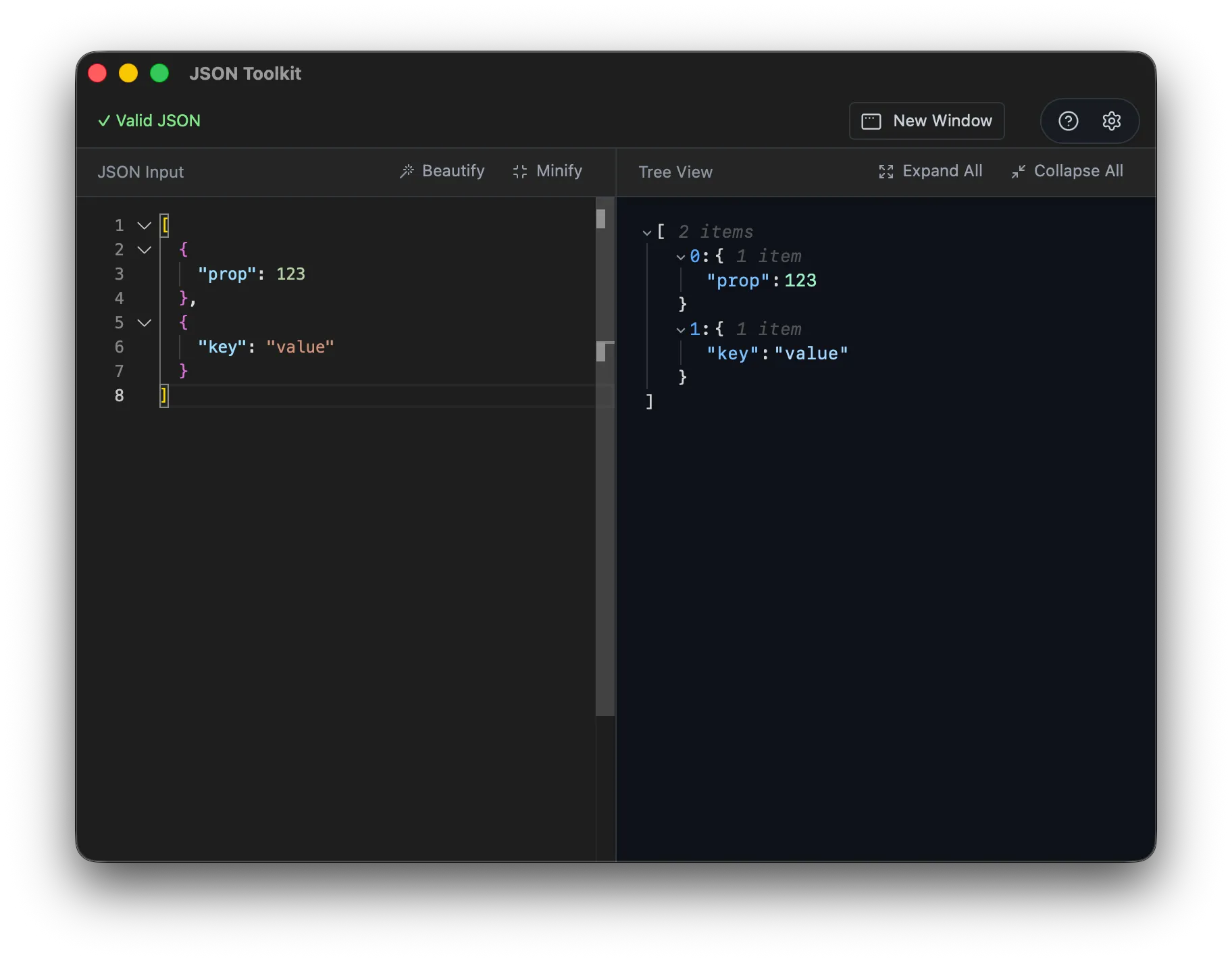
The editor validates your JSON as you type, highlighting any syntax errors with inline markers.
Viewing the Tree
Section titled “Viewing the Tree”Once your JSON is valid, the Tree View panel on the right automatically displays your data structure:
- Expand/Collapse: Click the arrows to drill into nested objects and arrays
- Navigate: The tree mirrors your JSON structure, making it easy to explore complex data
- Visual feedback: See your entire document hierarchy at a glance
The tree updates instantly as you edit, giving you real-time feedback on your changes.
Next Steps
Section titled “Next Steps”Now that you’re set up, explore more features:
- Features Overview — Learn about beautify, minify, diff, and more
- Product Overview — Understand the full capabilities of JSON Toolkit